Contracts
Documentation · Templates · Digital Signatures
Contract Management
The contract system enables companies to create custom contract templates, define contract fields, and send contracts to employees directly from job assignments. Contracts support digital signatures and provide a streamlined workflow for onboarding and employment documentation.
Custom fields
Define reusable contract fields with various types and validations.
Visual templates
Create beautiful contract templates using the Unlayer drag-and-drop editor.
Job integration
Send contracts directly to approved applicants from job management.
Key Features
Essential contract management tools.
Contract Fields
Create custom fields like name, date, email, and signature with validation rules.
Template Editor
Design contracts visually with Unlayer's drag-and-drop document editor.
Send from Jobs
Send contracts to approved applicants directly from the job management interface.
Digital Signatures
Employees can sign contracts digitally with signature capture functionality.
Auto-fill Fields
Fields can auto-populate from user profile data for faster contract completion.
Contract Tracking
Track sent, signed, and pending contracts with status management.
Export & Reports
Export contract fields and templates to Excel for reporting and backup.
Secure Storage
Signed contracts are securely stored with PDF generation and locking.
Contracts Management Overview
Visual guide to contract management features.
This video demonstrates the complete contract management workflow including creating contract fields, building templates with the visual editor, sending contracts to employees from jobs, and the digital signature process.
Contract Fields
Define reusable data fields for contracts.
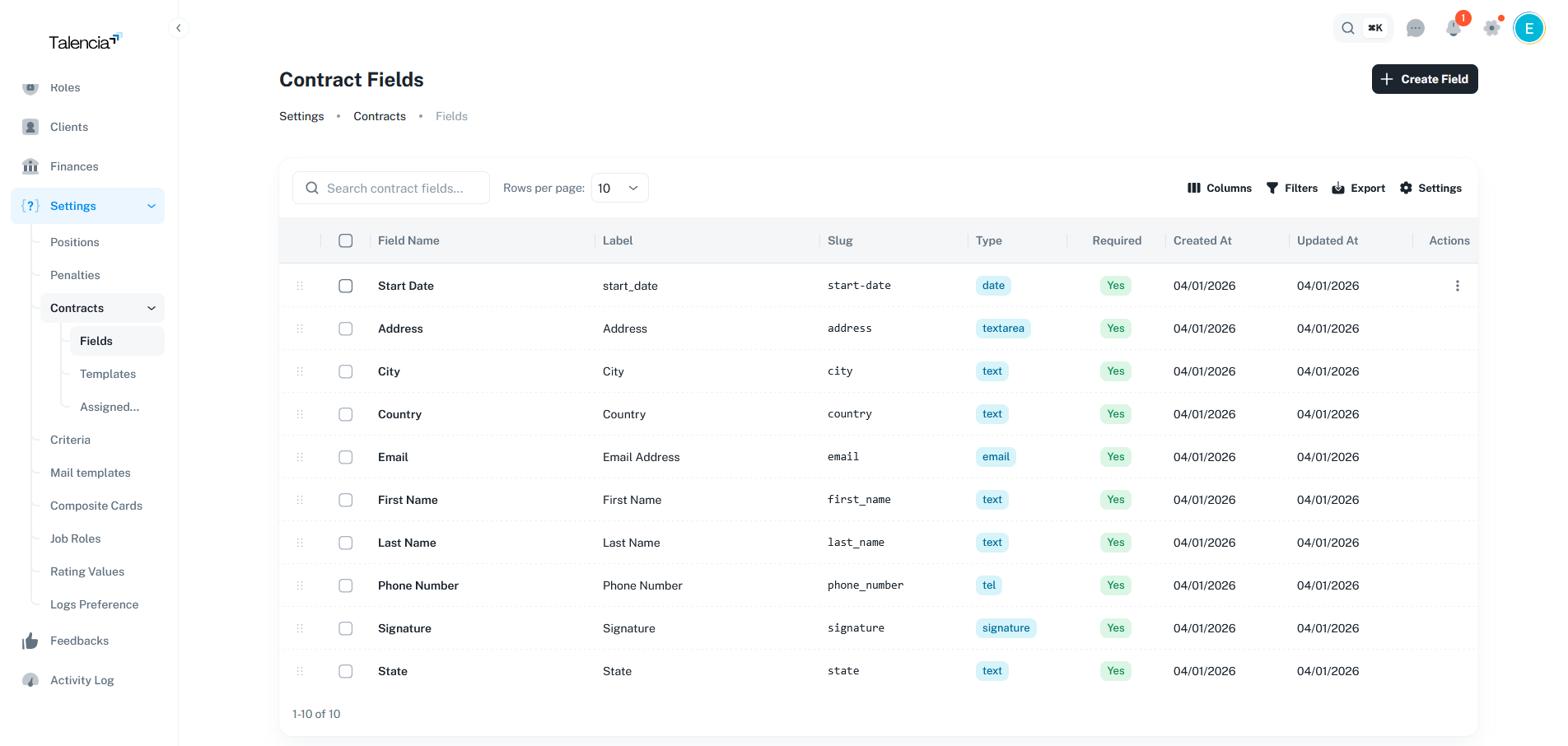
What are Contract Fields?
Reusable placeholders that can be inserted into contract templates
Contract fields are the building blocks of your templates. Each field has a type, validation rules, and can be configured to auto-fill from user profile data.
Text Field
Single-line text input for names, titles, etc.
Textarea
Multi-line text for addresses, descriptions.
Date Field
Date picker for start dates, birth dates.
Email Field
Email input with format validation.
Number Field
Numeric input for salaries, hours, etc.
Signature Field
Digital signature capture area.
Field Properties
Configuration options for each contract field
| Property | Description |
|---|---|
name | Display name of the field |
slug | Unique identifier (auto-generated from name) |
label | Label shown to users when filling the contract |
type | Field type: text, date, email, number, textarea, signature |
required | Whether the field must be filled before signing |
auto_fill | Auto-populate from user profile data |
Contract Templates
Design contracts with the visual editor.
Template Editor
Create beautiful contracts using the Unlayer drag-and-drop editor
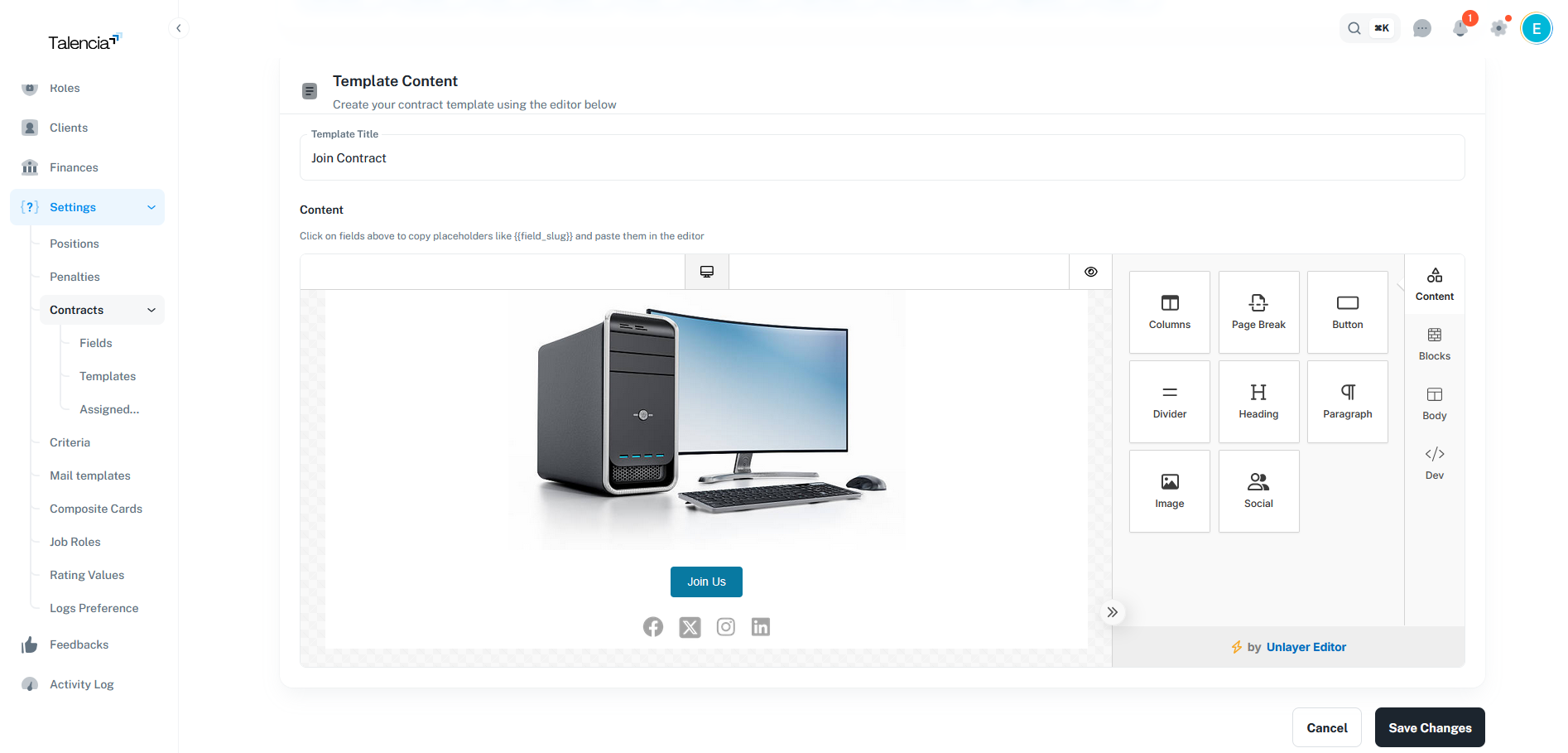
The template editor uses Unlayer, a powerful drag-and-drop document designer. You can add text, images, tables, and insert field placeholders that will be replaced with actual data when contracts are generated.
Create Contract Fields
Define all the fields you need before creating templates
Design Template
Use the visual editor to create your contract layout
Insert Placeholders
Click fields from the toolbar to copy placeholders like {{field_slug}}
Save Template
Save and use the template when sending contracts
Using Fields in Templates
How to insert field placeholders into your templates
When creating or editing a template, you'll see a "Contract Fields" panel showing all available fields. Click on any field to copy its placeholder to your clipboard, then paste it into the editor.
Example: {{first_name}} will be replaced with the user's first name
Example: {{signature}} will display the signature image
Sending Contracts from Jobs
Workflow for sending contracts to employees.
Send Contracts Workflow
Step-by-step process for sending contracts to approved applicants
Navigate to Jobs
Go to the Jobs section and select jobs with approved applicants
Select Jobs
Use checkboxes to select one or more jobs with approved applications
Click "Send Contracts"
Click the "Send contracts" button in the toolbar
Select Template
Choose a contract template from the dropdown list
Confirm & Send
Confirm to create contracts for all approved applicants of selected jobs
Contract Status
Track the status of sent contracts
Pending
Contract sent, awaiting employee signature
Signed
Contract signed by employee, PDF generated
Employee Contract Signing
How employees sign contracts.
Signing Process
Steps for employees to complete and sign contracts
Receive Notification
Employee receives notification about pending contract
Review Contract
View the contract template with field placeholders
Fill Required Fields
Complete any required fields not auto-filled from profile
Draw Signature
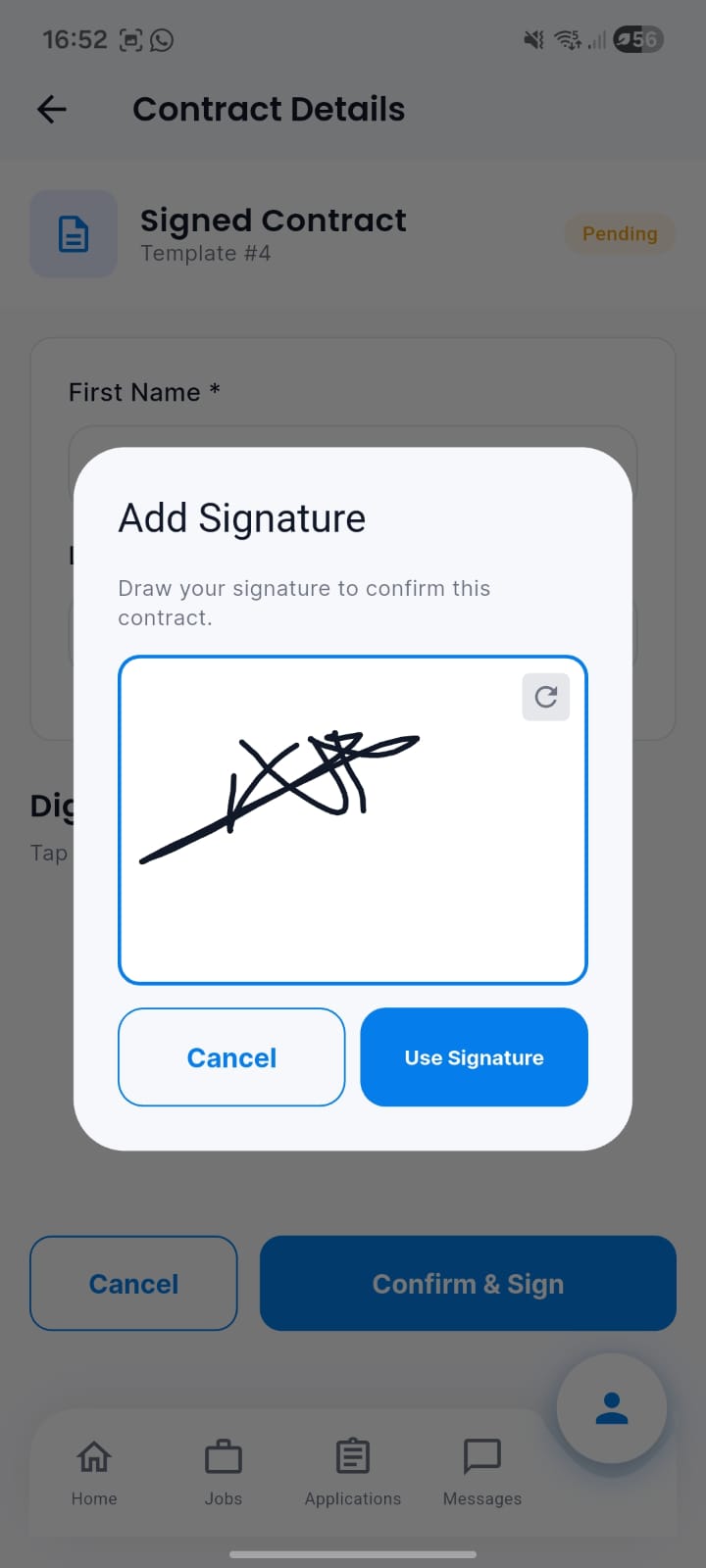
Use the signature pad to draw and capture signature
Submit Contract
Submit the signed contract for processing
Permissions
Required permissions for contract operations.
| Action | Permission |
|---|---|
| View Contract Fields | settings.view |
| Create Contract Field | settings.create |
| Edit Contract Field | settings.update |
| Delete Contract Field | settings.delete |
| View Contract Templates | settings.view |
| Create Contract Template | settings.create |
| Send Contracts from Jobs | jobs.update |
| View Assigned Contracts | contracts.view |
Merge Variables (Examples)
Available merge variables for contract templates.
| Variable | Description |
|---|---|
{{ first_name }} | Employee first name |
{{ last_name }} | Employee last name |
{{ email }} | Employee email address |
{{ job_title }} | Job title/profession |
{{ project_title }} | Project name |
{{ start_date }} | Contract/job start date |
{{ signature }} | Digital signature image |
Visual Examples
Contract management interfaces in action.
Contract Fields Management
List of contract fields with filtering and bulk operations
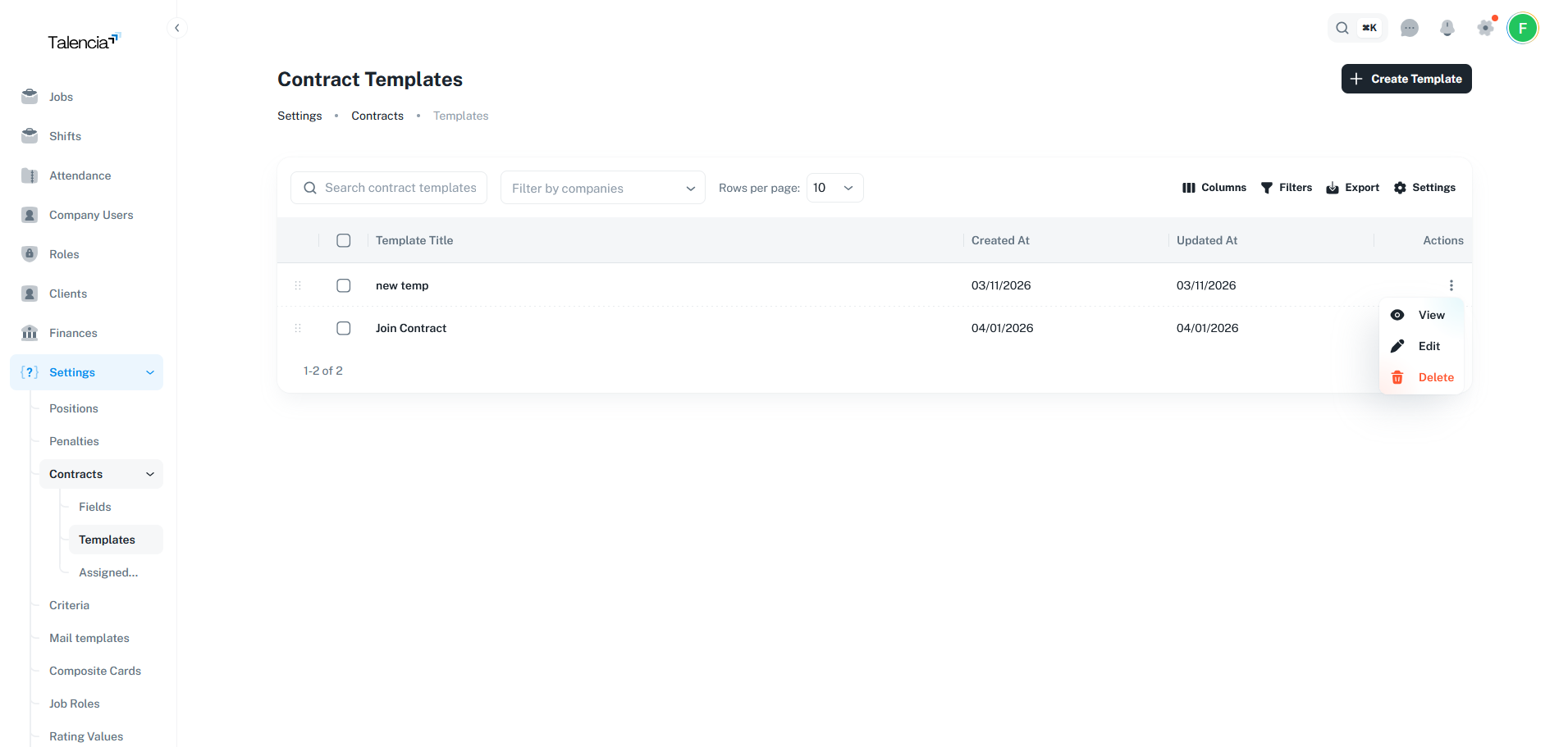
Contract Templates List
Available templates with preview and management options
Template Editor
Unlayer drag-and-drop editor with contract fields panel
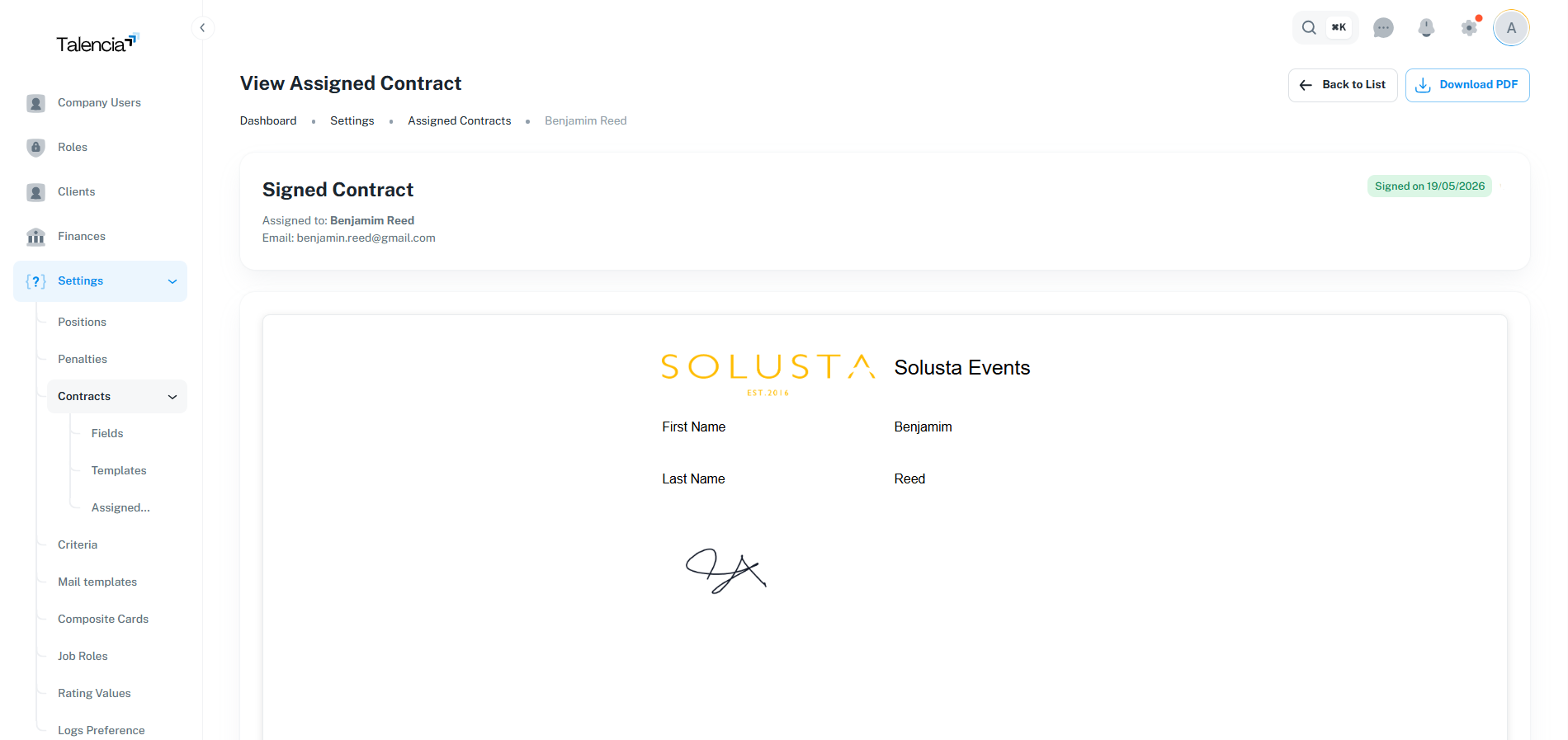
Admin View Signed Contract
After signing, the contract is received and can be reviewed by the admin, including the talent's signature.
Talent Mobile Contract Signing
Talent reviews, signs, and approves their contract directly from the mobile app using a signature field.
Best Practices
Contract management guidelines.
| Practice | Recommendation |
|---|---|
| Field Creation | Create all necessary fields before building templates |
| Auto-fill Setup | Enable auto-fill for fields that match user profile data |
| Template Design | Use clear placeholders and professional formatting |
| Required Fields | Mark essential fields as required to ensure completeness |
| Signature Field | Always include a signature placeholder in templates |
| Testing | Test templates by sending contracts to test accounts first |
Troubleshooting
Common issues and solutions.
| Issue | Fix |
|---|---|
| Can't create contract field | Ensure you have settings.create permission from your administrator |
| Template editor not loading | Check your internet connection and refresh the page. Clear browser cache if needed |
| Placeholders not replaced | Verify the field slug matches exactly (case-sensitive). Check for extra spaces in placeholders |
| Send contracts button disabled | Select jobs with approved applicants first. Ensure you have jobs.update permission |
| Contract already exists error | The applicant already has a contract for this job. Check assigned contracts list |
| Signature not saving | Draw the signature clearly in the signature pad area. Ensure all required fields are filled |