Company Users
Management · Roles · Permissions
Company Workers
The company users system enables organizations to manage their internal workforce including HR personnel, managers, and staff. Each user is assigned roles with specific permissions, controlling access to different features and data within the system.
Role-based access
Assign roles like HR, Manager, Admin with granular permissions.
User management
Create, edit, and manage company workers with profile images.
Status control
Active, hibernate, or ban users to control system access.
Key Features
Essential user management tools.
User Directory
View all company workers with search, filter, and pagination.
Role Assignment
Assign roles with predefined permission sets to users.
Email Integration
Send emails to users using email templates.
Login As
Admins can login as other users for support purposes.
Import & Export
Bulk import users via CSV and export user data to Excel.
Profile Images
Upload and manage profile pictures for each user.
Status Management
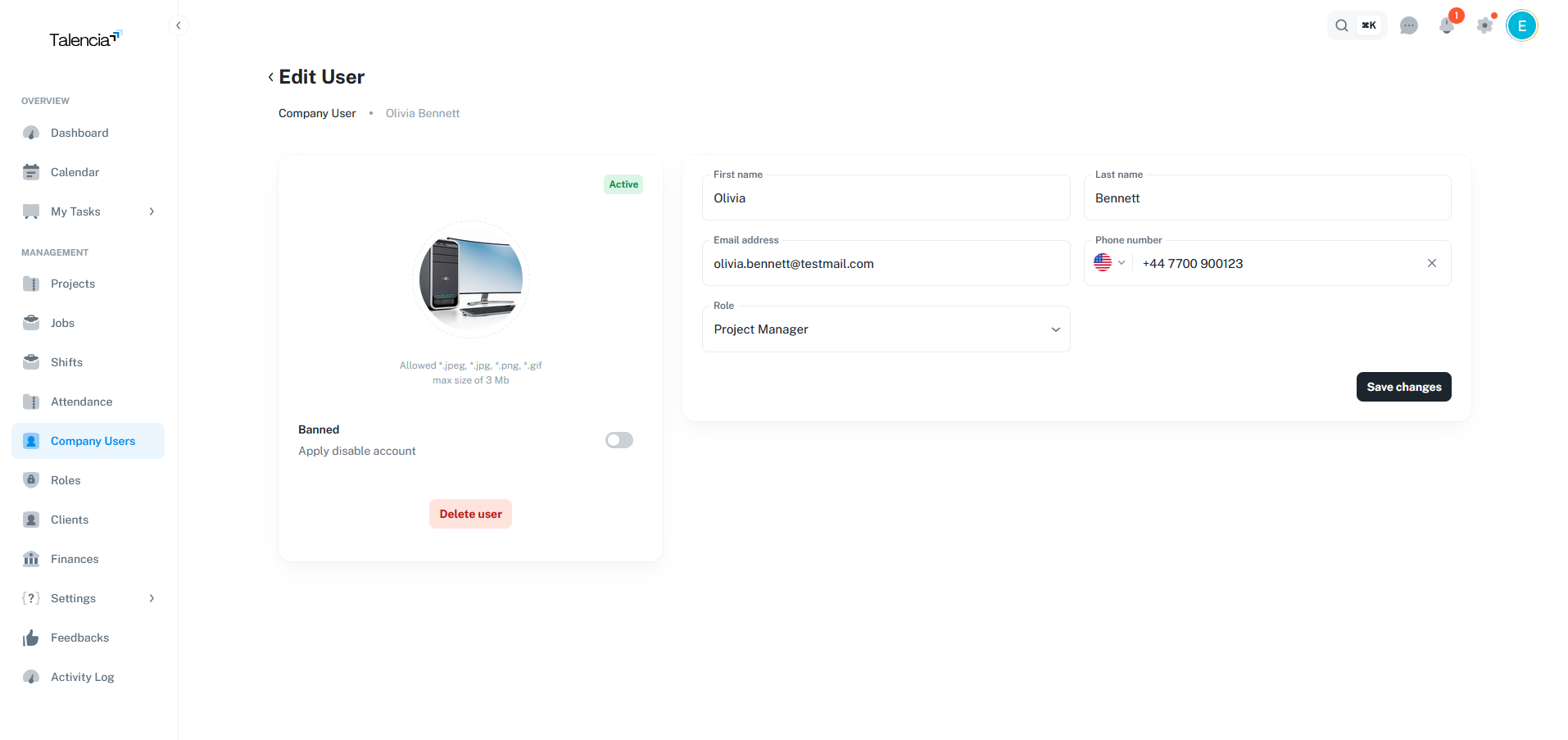
Control user access with active, hibernate, or banned status.
Auto Password
Auto-generate passwords sent via email on user creation.
Company Users Management Overview
Visual guide to user management features.
This video demonstrates the complete company user management workflow including creating users, assigning roles, managing permissions, updating user status, and using the import/export features.
User Roles
Define access levels with permissions.
What are Roles?
Roles define what users can access and modify in the system
Each role contains a set of permissions that determine what actions a user can perform. When creating a user, you assign them a role that grants them the appropriate access level.
Super Admin
Full system access across all companies.
Admin
Company-level full access to all features.
HR Manager
Manage jobs, applications, and employees.
Viewer
Read-only access to assigned sections.
Creating Users
Step-by-step user creation workflow.
Create User Workflow
Steps to add a new company user
Navigate to Users
Go to the Users section from the dashboard
Click "New User"
Click the "New User" button to open the creation form
Fill User Details
Enter first name, last name, email, and phone number
Select Role
Choose a role from the dropdown to assign permissions
Upload Profile Image (Optional)
Add a profile picture for the user
Submit & Email
Submit to create user - auto-generated password sent via email
User Fields
Required and optional fields for user creation
| Field | Required | Description |
|---|---|---|
first_name | Yes | User's first name |
last_name | Yes | User's last name |
email | Yes | Unique email address for login |
role_id | Yes | ID of the role to assign |
phone | No | Phone number |
profile_image | No | Profile picture file (jpg, png, webp) |
status | No | active, hibernate, or banned (default: active) |
User Status
Control user access and availability.
Status Types
Available user status options
Active
User can log in and access all permitted features
Hibernate
User account temporarily suspended
Banned
User access completely revoked
Data Grid Features
User list management capabilities.
Available Actions
Actions available in the user data grid
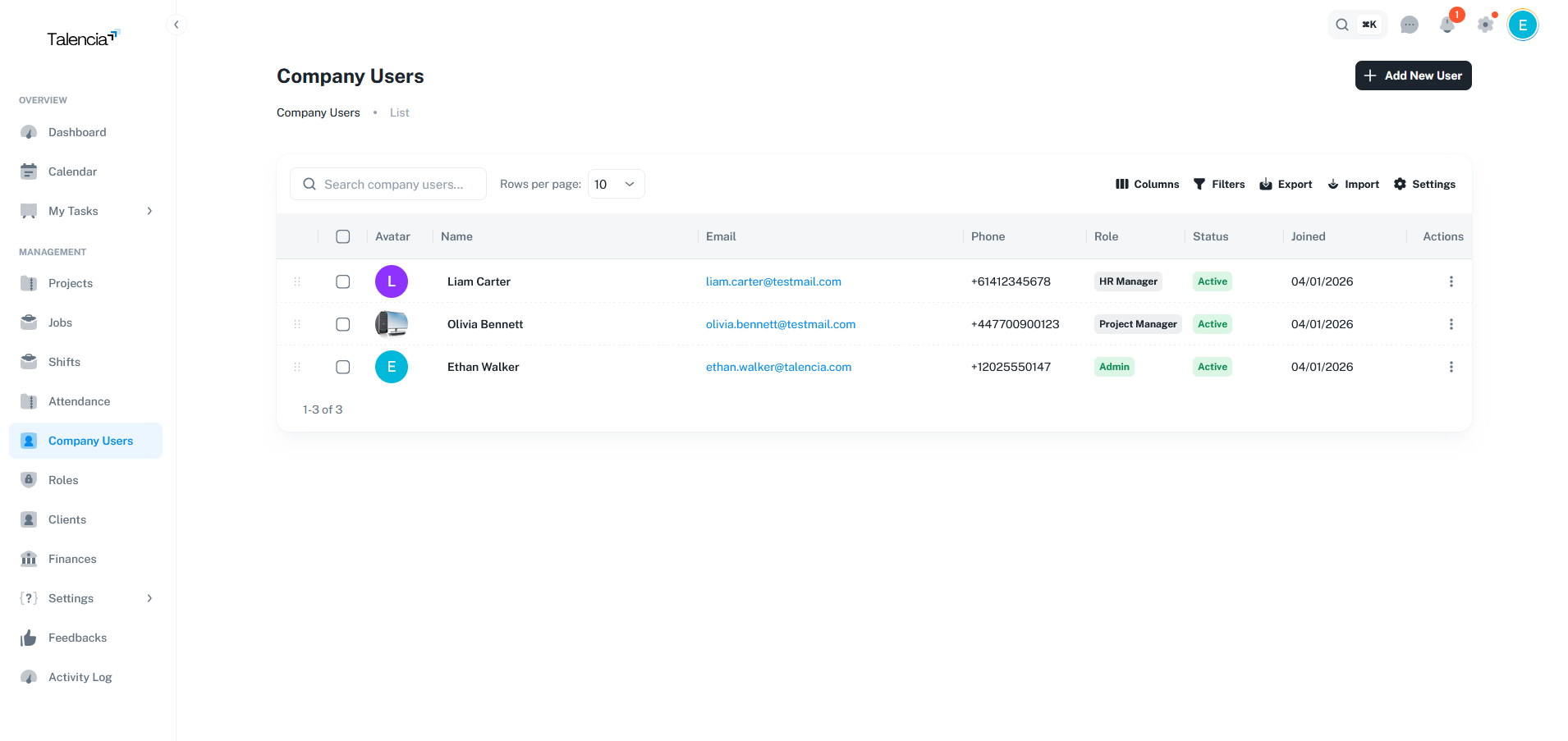
Search
Search by name, email, or phone
Filter
Filter by status, role, or date joined
Sort
Sort by any column ascending/descending
Columns
Show/hide columns in the grid
Export
Export user list to Excel
Import
Bulk import users via CSV file
Send Email
Send emails to single or multiple users
Bulk Delete
Delete multiple selected users
Permissions
Required permissions for user operations.
| Action | Permission |
|---|---|
| View Users List | users.view |
| Create User | users.create |
| Edit User | users.update |
| Delete User | users.delete |
| Login As User | users.update |
| Export Users | users.update |
| Import Users | users.update |
| Manage Roles |
|
Visual Examples
User management interfaces in action.
Company Users List
Data grid with search, filter, and bulk actions
Edit User Form
Form for editing existing users with status toggle
Send Email Template
Dialog for sending emails to users using templates
Best Practices
User management guidelines.
| Practice | Recommendation |
|---|---|
| Role Assignment | Assign minimum required permissions for each role |
| Password Security | Auto-generated passwords are sent securely via email |
| Inactive Users | Use hibernate status for temporary leave instead of deleting |
| Bulk Operations | Use import for adding multiple users at once |
| Profile Images | Use professional headshots for better identification |
| Regular Audits | Review user roles and permissions periodically |
Troubleshooting
Common issues and solutions.
| Issue | Fix |
|---|---|
| Can't create user | Ensure you have users.create permission from your administrator |
| Email already exists error | The email is already registered. Use a different email or check existing users |
| Role not showing in dropdown | Create roles first in the Roles section before assigning to users |
| User can't log in | Check if user status is "active" and verify they received the password email |
| Import failed | Ensure CSV has required columns: first_name, last_name, email, role |
| Can't delete user | You need users.delete permission. Some users may be protected |